 BudgetDaily
Set up bills and confirm them when due
Rent, subscriptions and bills repeat, so enter them once. BudgetDaily then lists what is coming up and asks you to confirm each payment when it is due.
Step by step
One screen at a time
Start an expense and turn on Recurring
On Accounts, tap the minus on the account the bill is paid from and type the amount. Then press and hold the category to open the full form.
Give it a title and switch on Recurring.
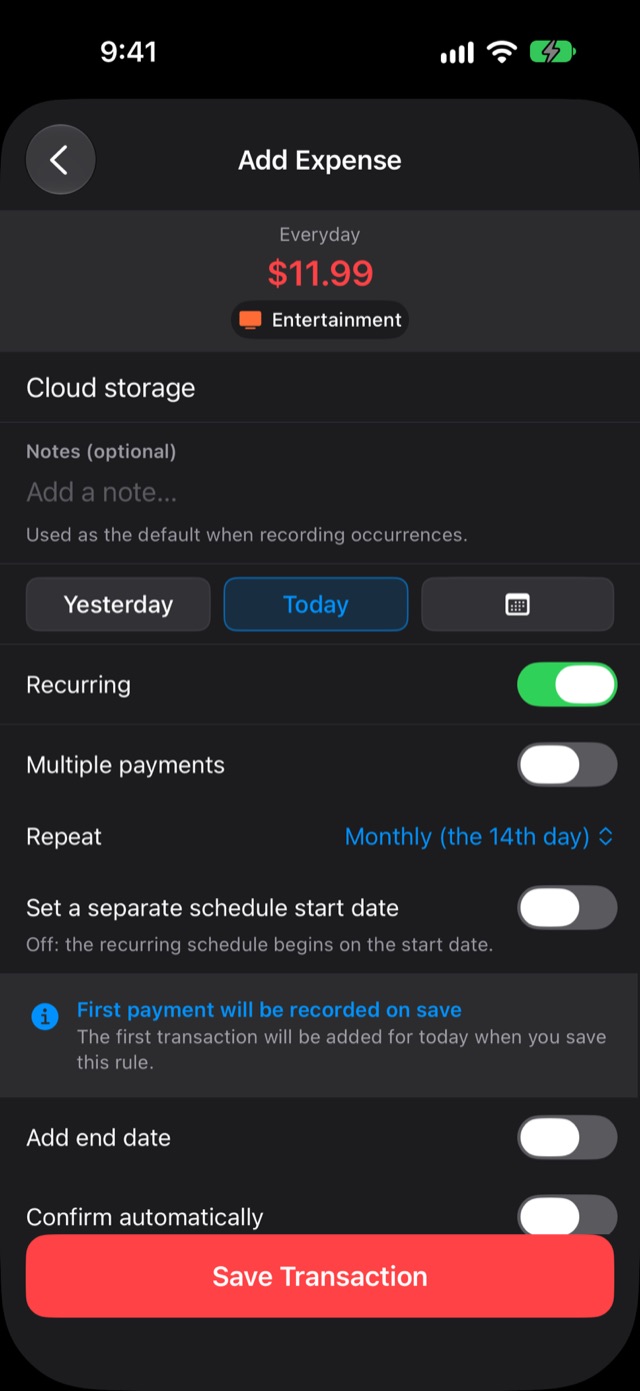
Choose how it repeats
Set Repeat (weekly, fortnightly, monthly and more), add an end date if it has one, and choose a reminder if you want a nudge.
Confirm automatically records each payment for you when it falls due. Leave it off for bills where the amount changes, so you can check each one.
Tap Save Transaction.
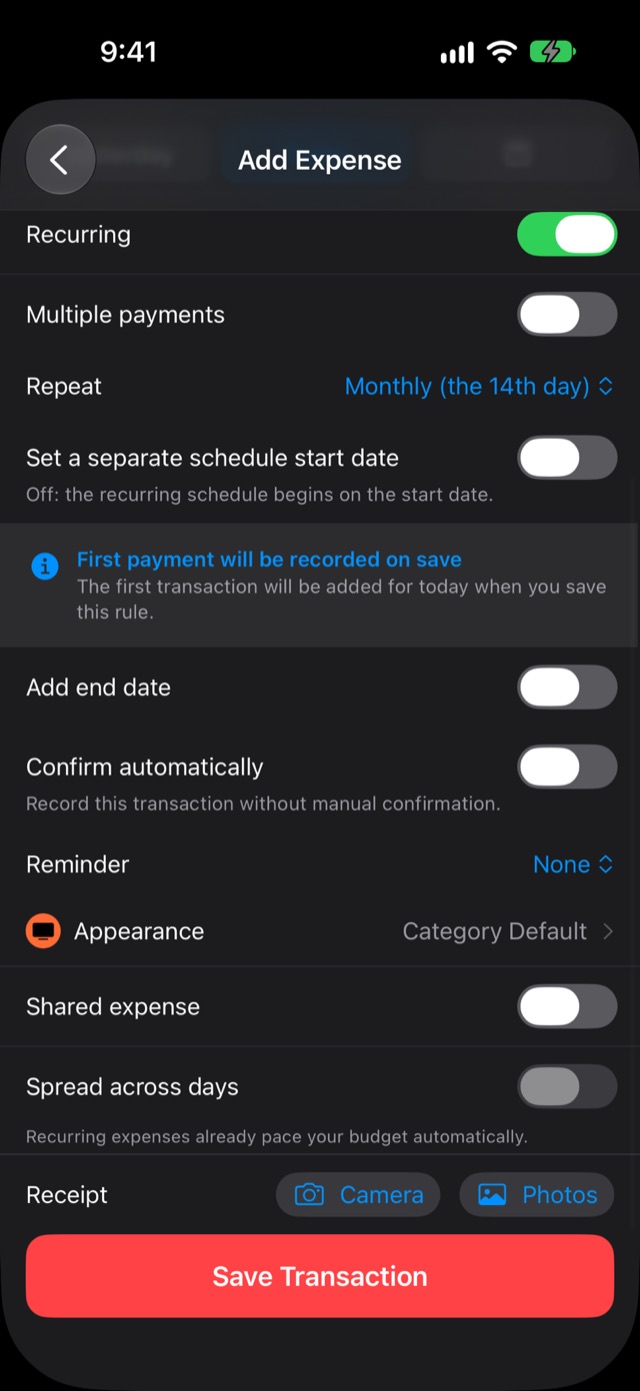
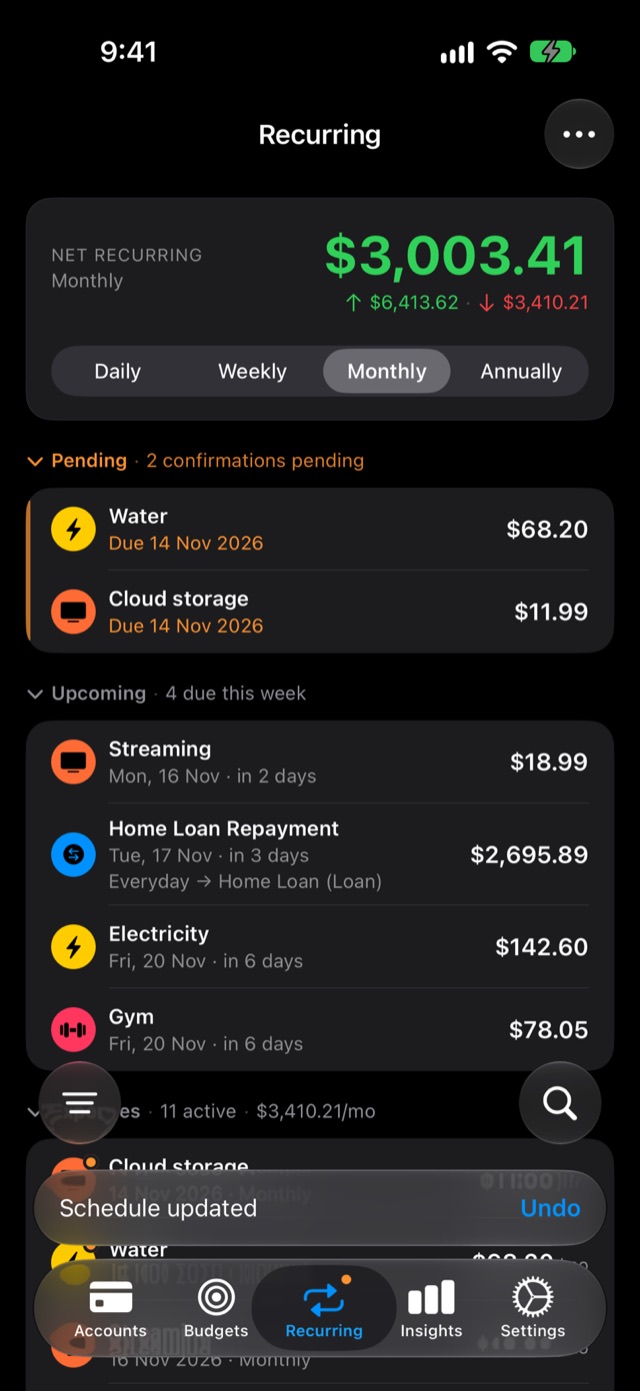
Open the Recurring tab
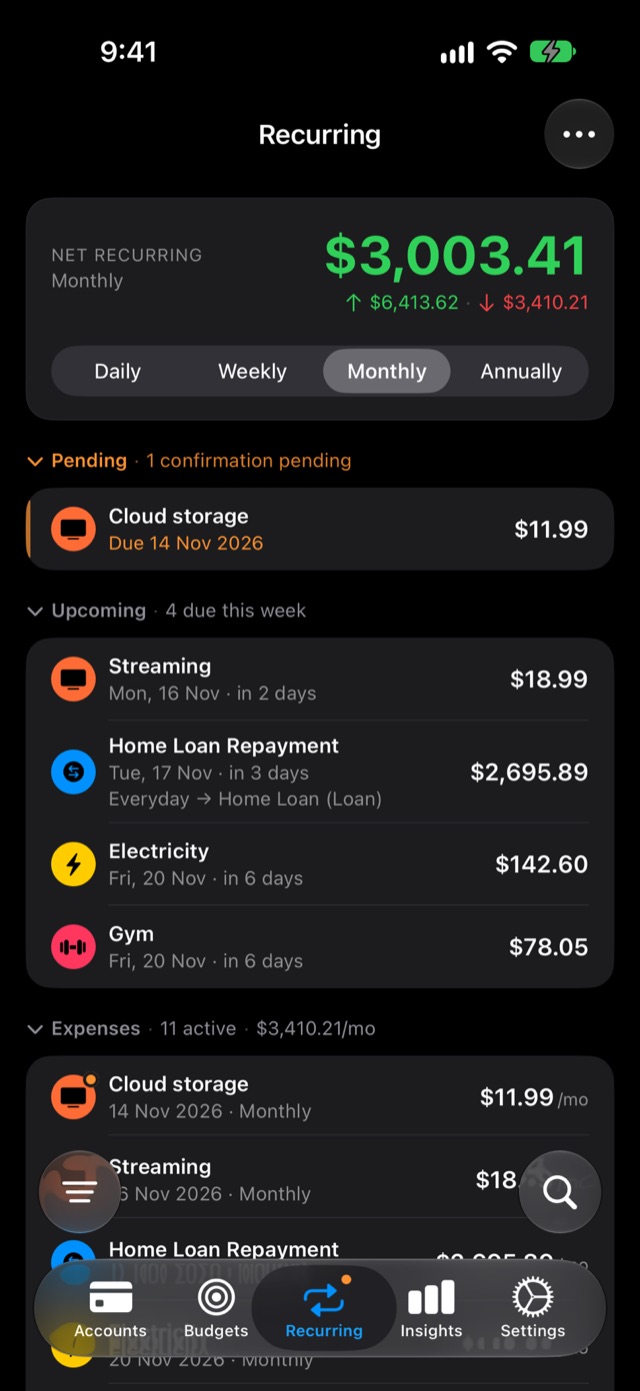
Pending lists payments that are due and waiting for you. Upcoming shows what falls due in the next seven days. Below that are all your rules.
The figure at the top is your recurring income minus recurring expenses.
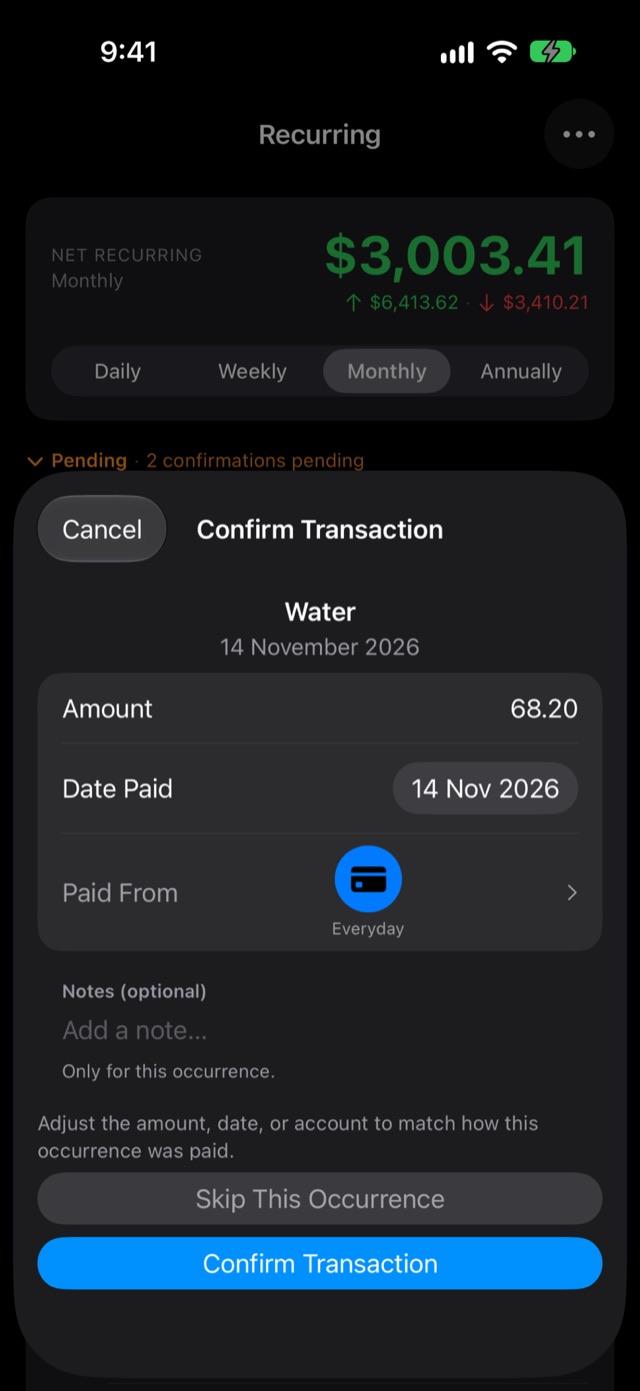
Tap a pending payment
Check the amount, the date it was paid, and the account. Change any of them to match what actually happened; the change applies to this payment only.
Tap Confirm Transaction. If you did not pay it this time, tap Skip This Occurrence.
Done
The payment leaves Pending and is recorded as an expense in the account. The rule stays in place for next time.
What to do next
Related tips and guides
The dot on the Recurring tab means something is waiting for you there.
Paying something off in parts? Pay in instalments covers one purchase paid over several dates.
Add your pay the same way. Use the green plus on an account and switch on Recurring.