 BudgetDaily
Set up BudgetDaily in 10 minutes
The first time you open BudgetDaily it asks for your home currency, then walks you through three things: one account, your pay, and one budget. That is all you need to see what you can spend today.
Watch the whole setup
A recording of the real app, from first launch to a working budget. No sound.
- Choose your home currency
- Add your everyday account
- Tell it when you get paid
- Create one weekly budget
- See Today's balance
Step by step
The same setup, one screen at a time
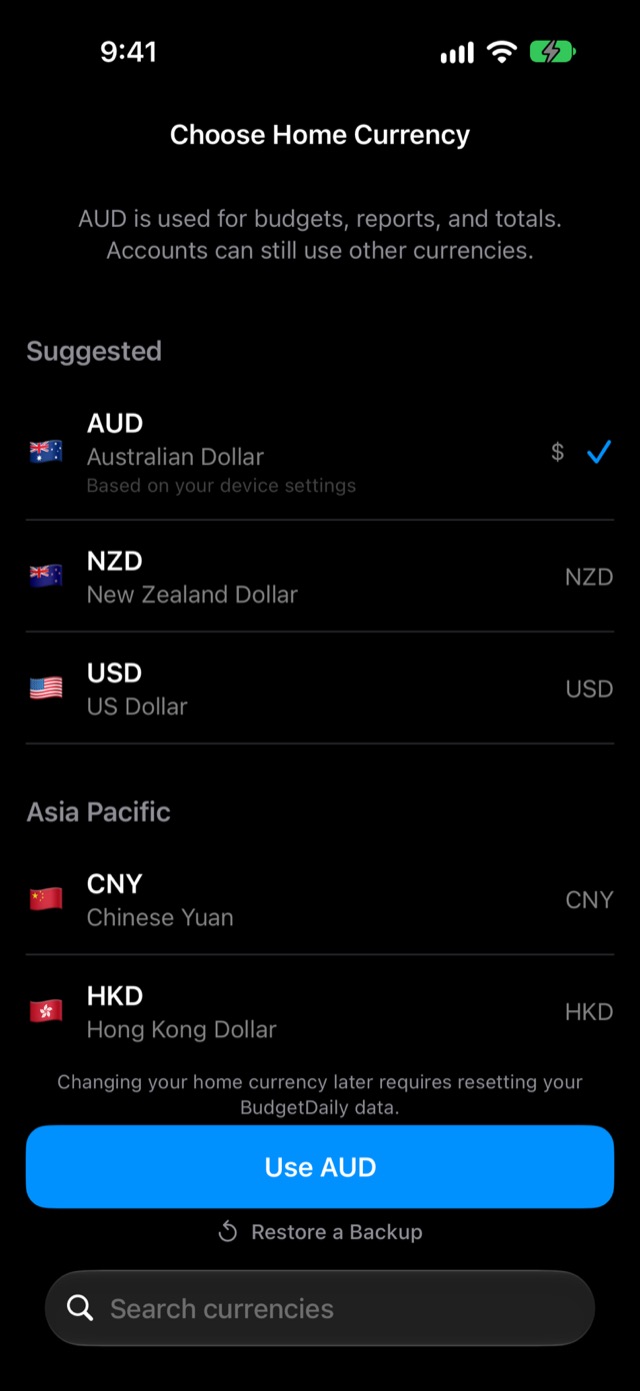
Choose your home currency
BudgetDaily suggests the currency from your phone's region. Budgets, reports and totals use it, and individual accounts can still be in other currencies.
Choose carefully. Changing it later means resetting your BudgetDaily data. Tap the Use button, then Confirm.
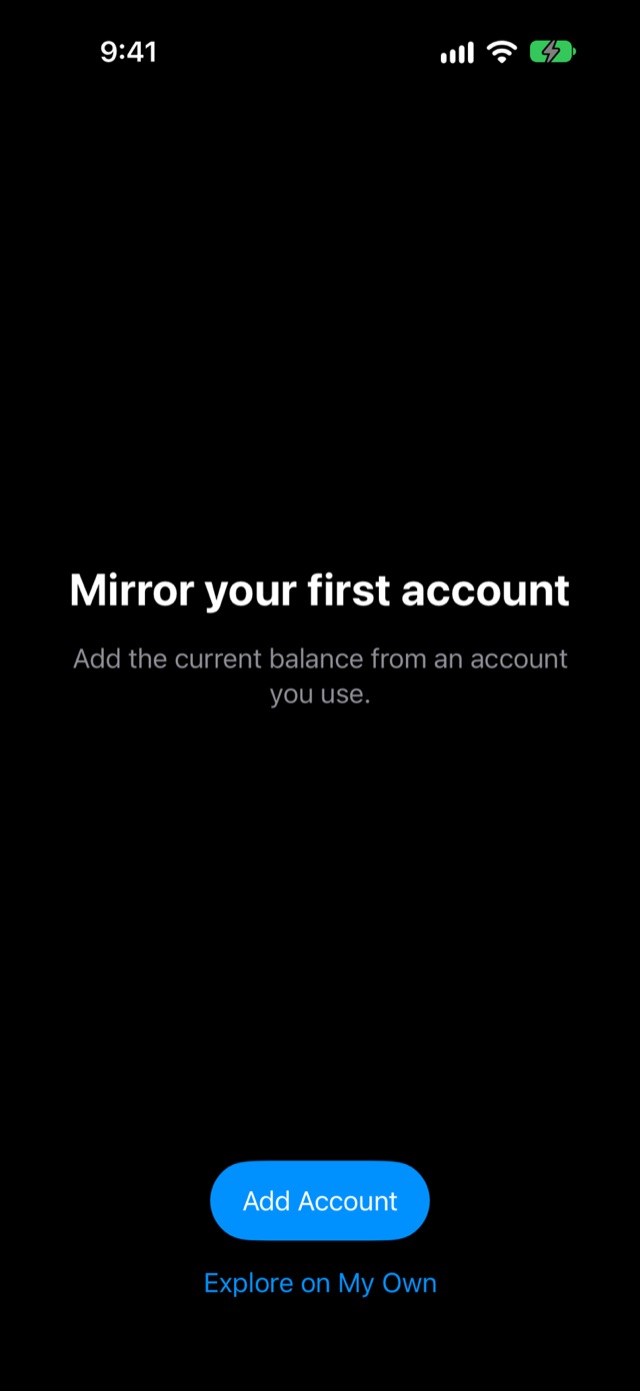
Tap Add Account
There is nothing to sign up for. BudgetDaily starts by asking for one account, so pick the one you spend from most.
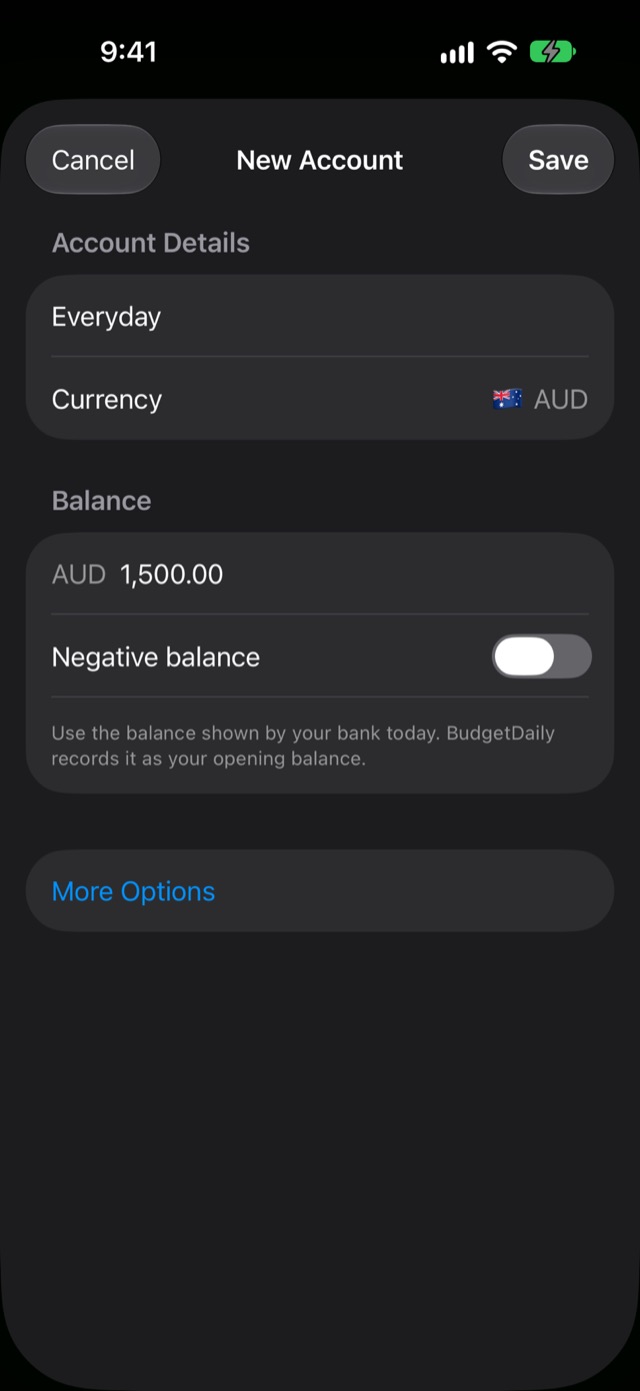
Name it and enter today's balance
Type a name, then the balance your bank shows right now. BudgetDaily records it as the opening balance.
Use the real figure. The app mirrors your account, so a missing or doubled transaction later shows up as a difference you can spot.
Tap Save.
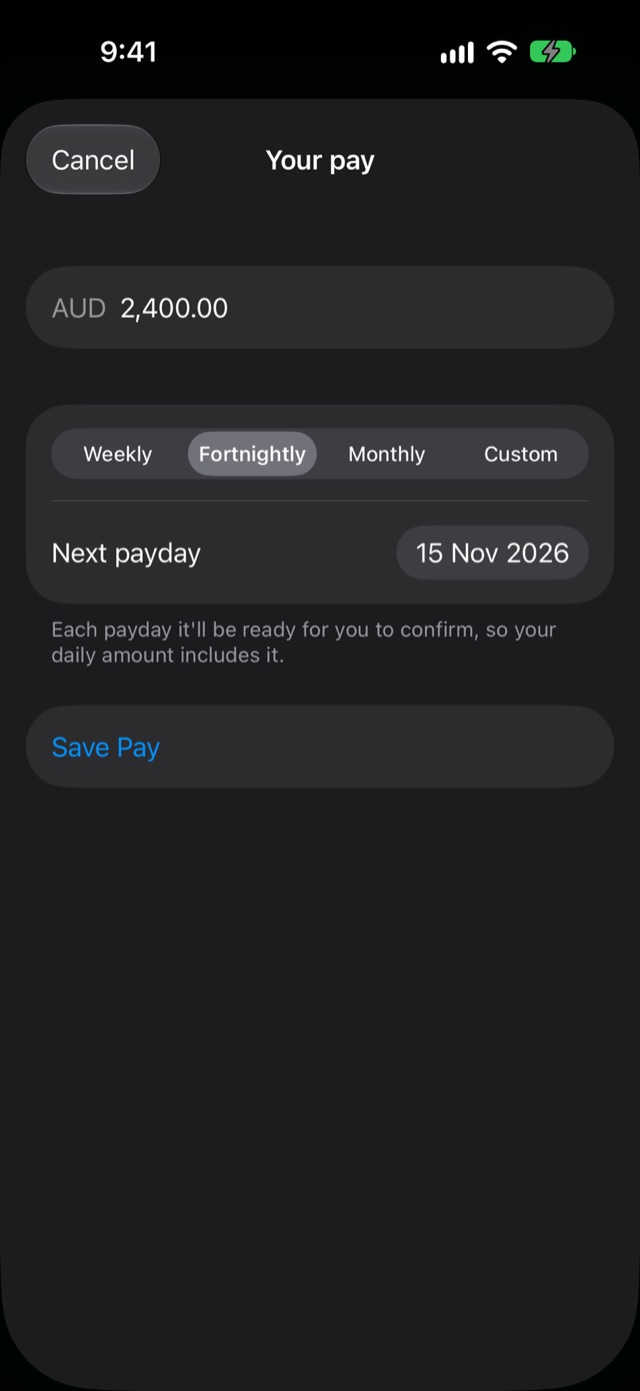
Add your pay Optional
Tap Add Pay, enter the amount, choose how often you are paid, and set your next payday. Then tap Save Pay.
Nothing is added to your account yet. Each payday the pay is ready for you to confirm in the Recurring tab.
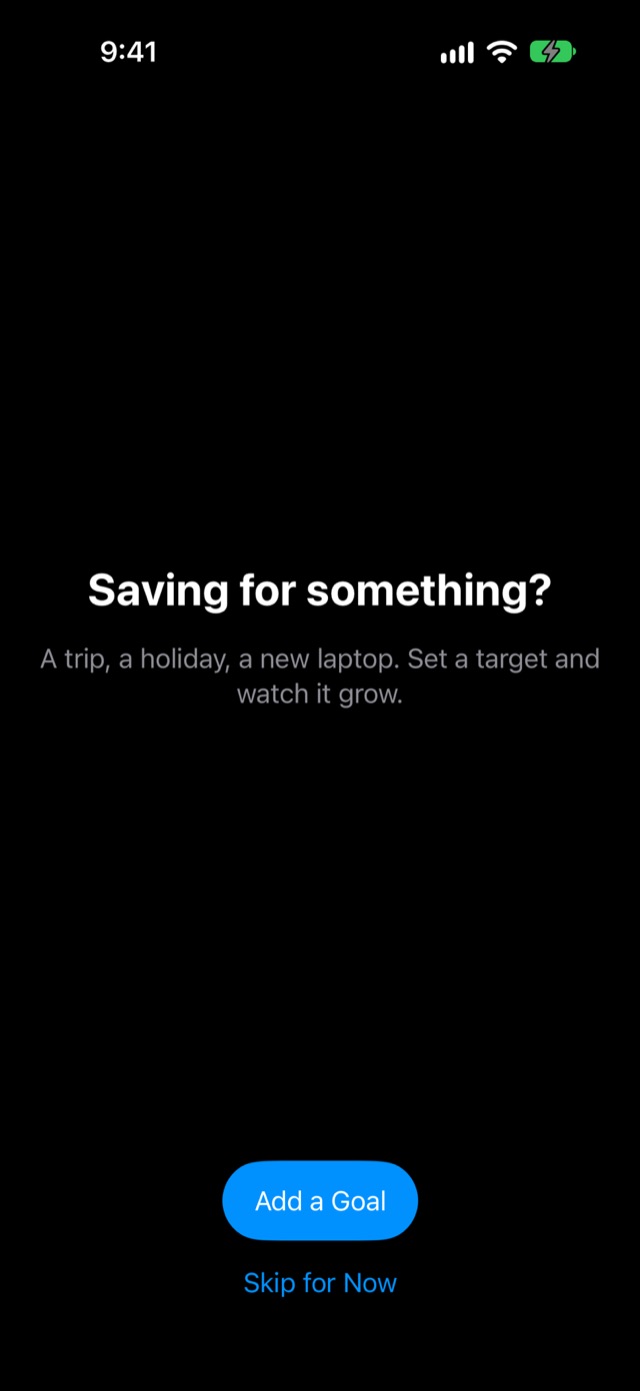
Skip the savings goal for now Optional
You can add a goal here, but it is easier once you have used a budget for a week. Tap Skip for Now. Goals live under Budgets, in the Savings section, whenever you are ready.
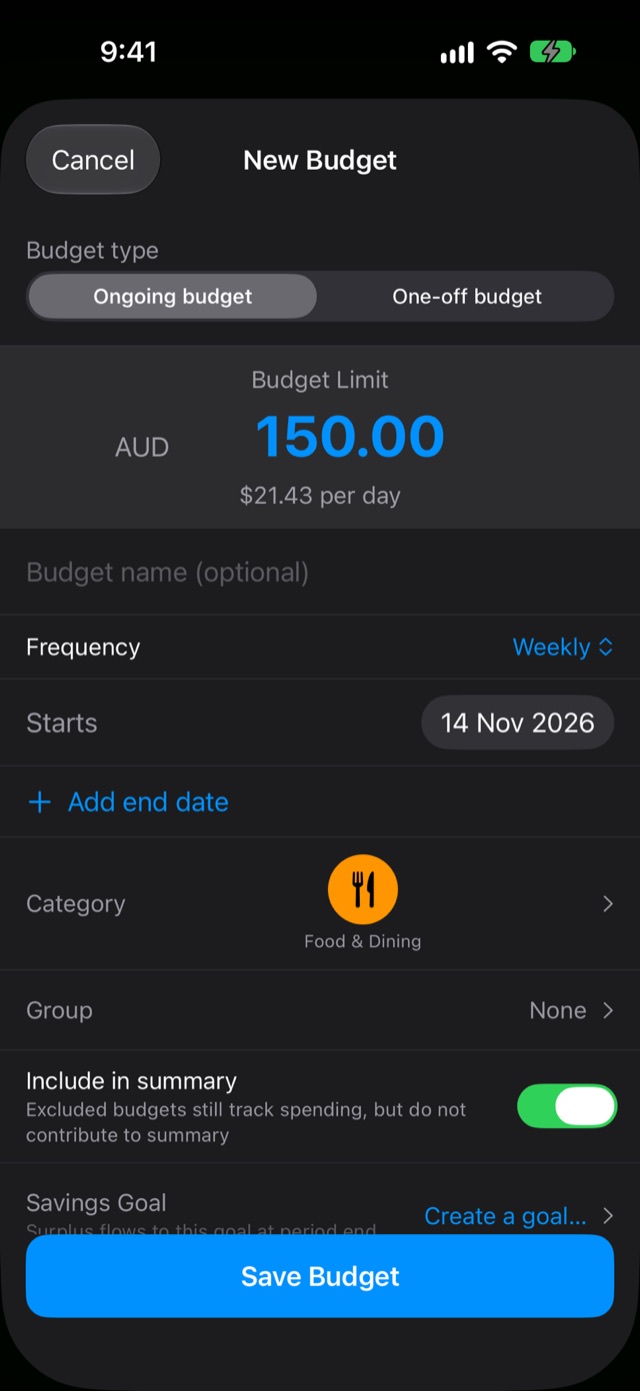
Create one budget
Tap Create a Budget. Enter a limit, pick the category you most want to keep an eye on, and set Frequency to Weekly.
The line under the limit shows what that works out to per day. Tap Save Budget.
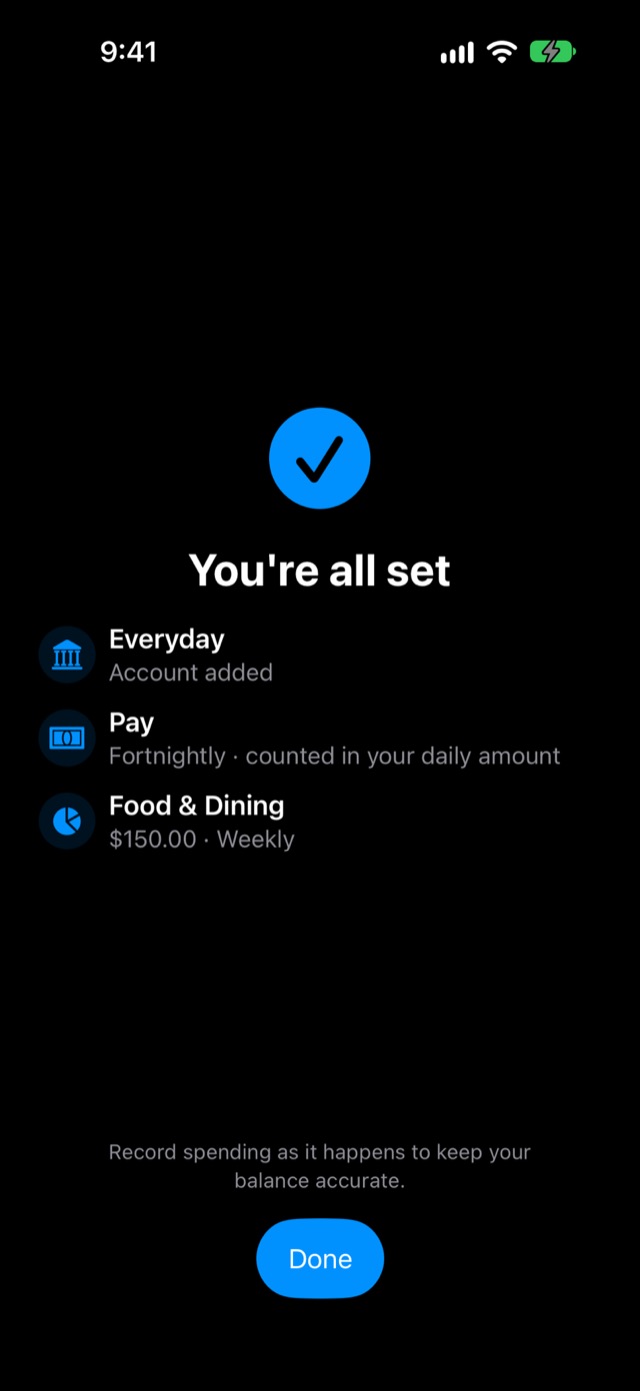
Check the summary and tap Done
The last screen lists what you set up. Anything you skipped can be added later from inside the app.
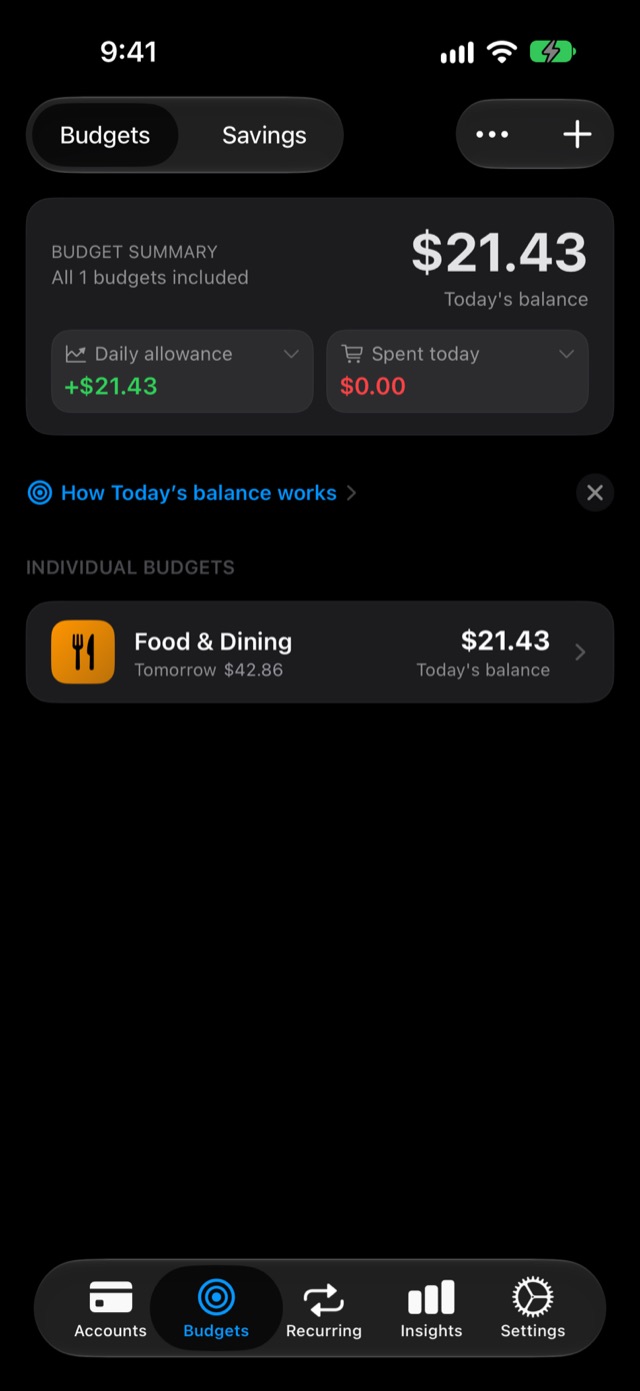
Find Today's balance on the Budgets tab
Open Budgets. Today's balance is what your budget allows you to spend today and still be on pace. It grows by your daily allowance each day and drops as you record spending.
It is a planning guide, separate from the money in your account.
What to do next
The habit that makes the number useful
Record spending as it happens. Today's balance is only as accurate as what you log.
Start with one budget. Add more once the first one feels natural. The free plan includes two.
Want the ideas behind it? Getting Started explains Today's balance, daily allowance and the weekly review.