 BudgetDaily
Use an account in another currency
Travel cards and overseas accounts keep their own currency in BudgetDaily. You record spending in that currency, and the app converts it for your budgets and totals.
Step by step
One screen at a time
Find the account
An account in another currency shows its own balance, with the approximate value in your home currency underneath.
To add one, tap the plus at the top of Accounts and change Currency on the New Account form.
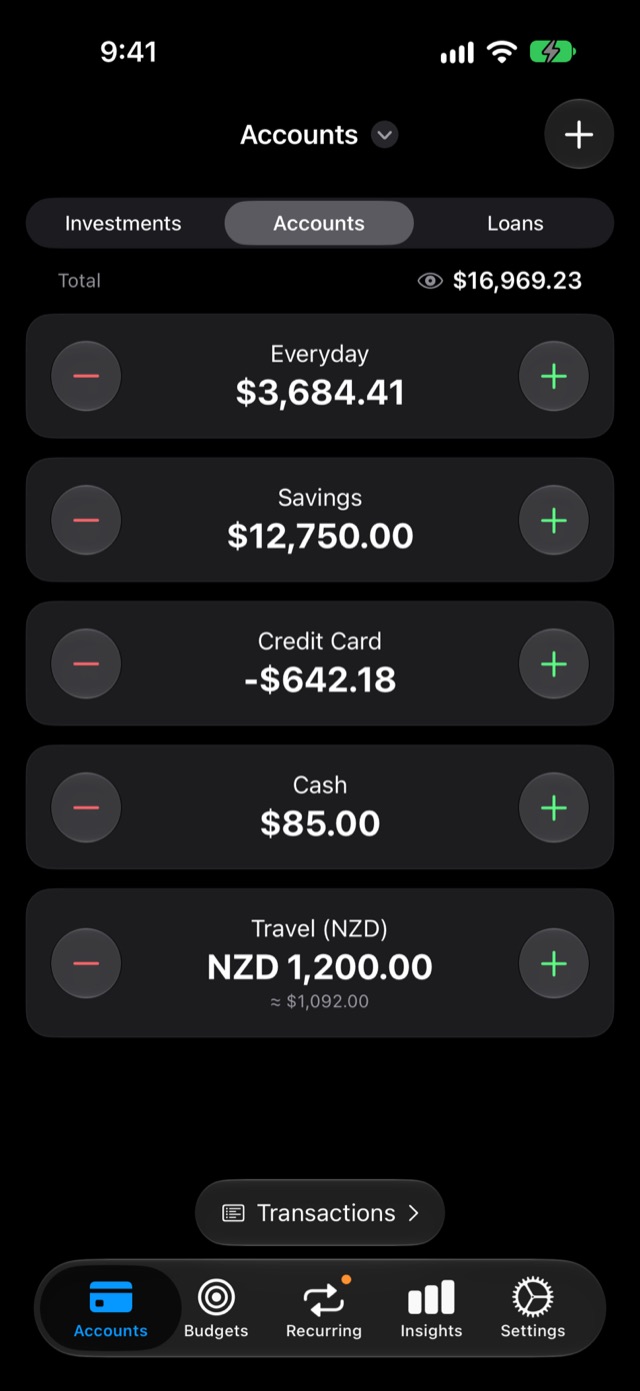
Record spending in the account currency
Tap the minus on the account. The amount is in that account's currency, so type what you were charged locally.
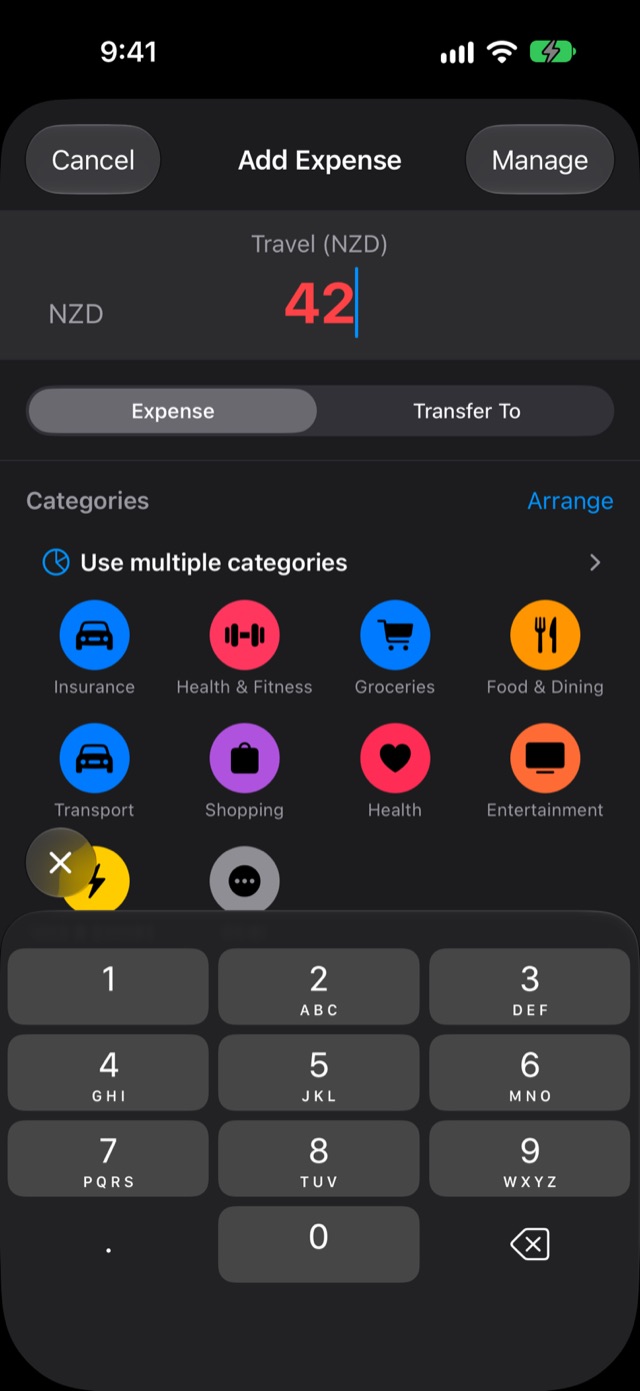
Tap the category
The account balance and its home-currency value both update.
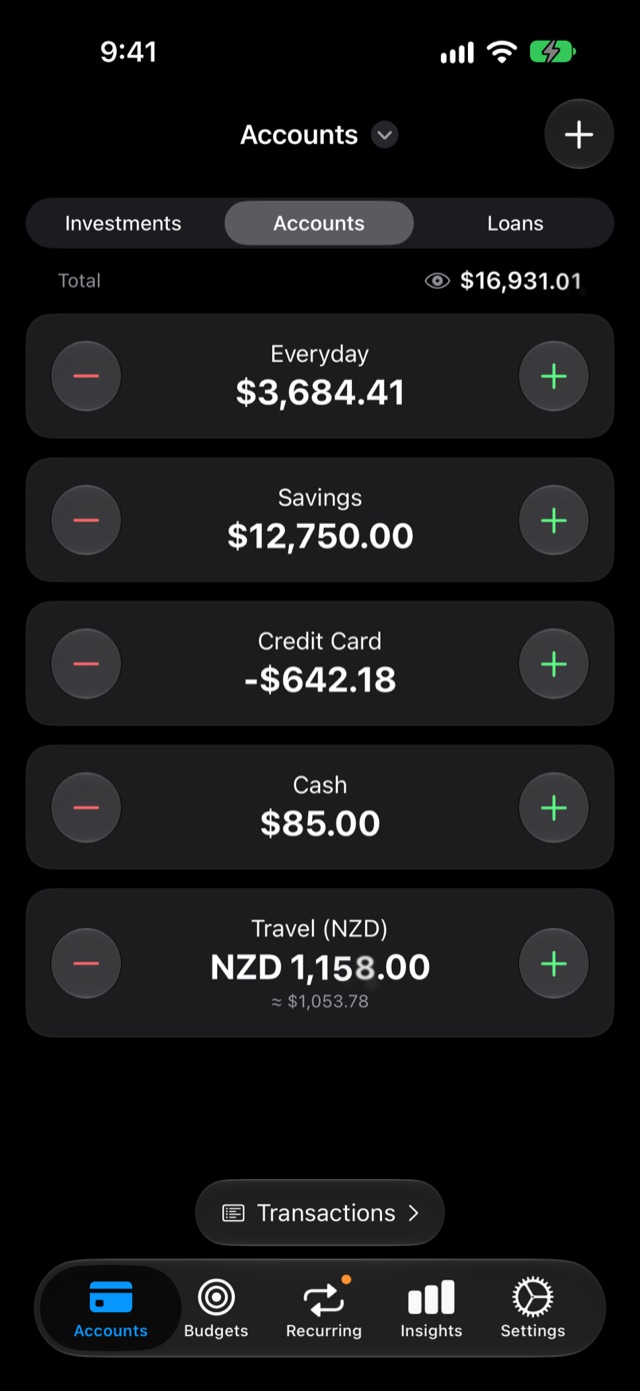
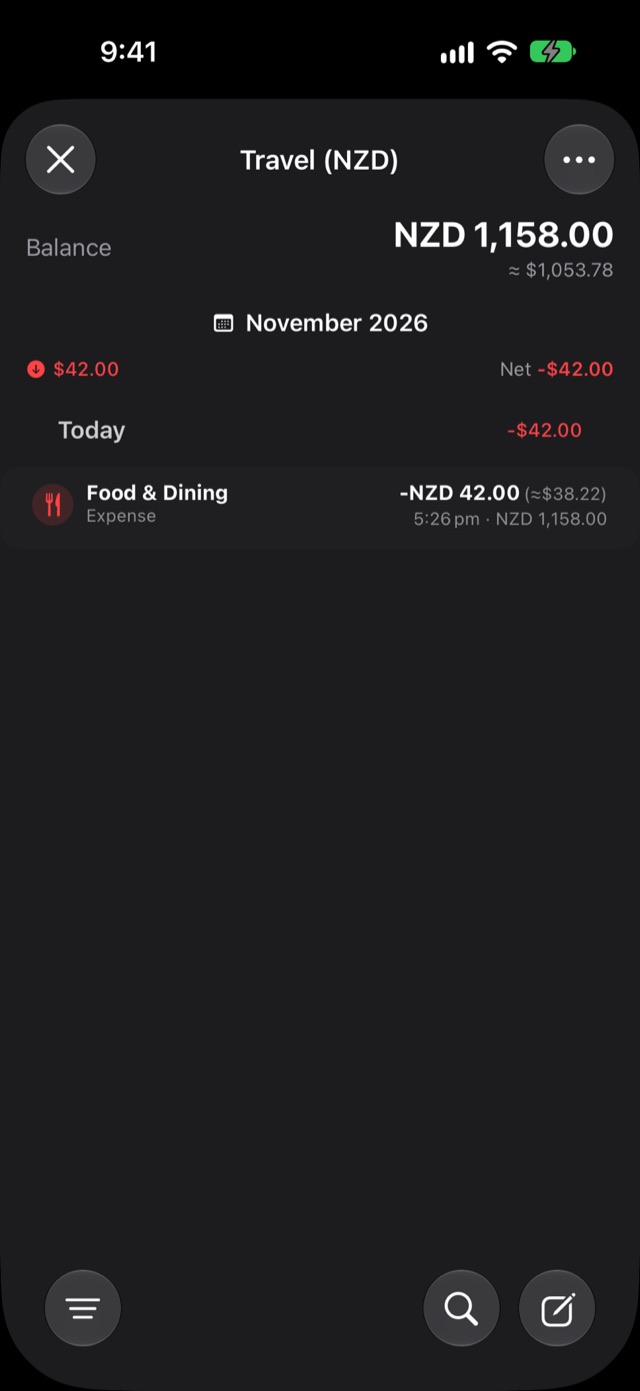
See both amounts
Open the account. Each transaction shows the amount in the account currency and, beside it, what that was worth in your home currency. The home-currency figure is what counts against your budget.
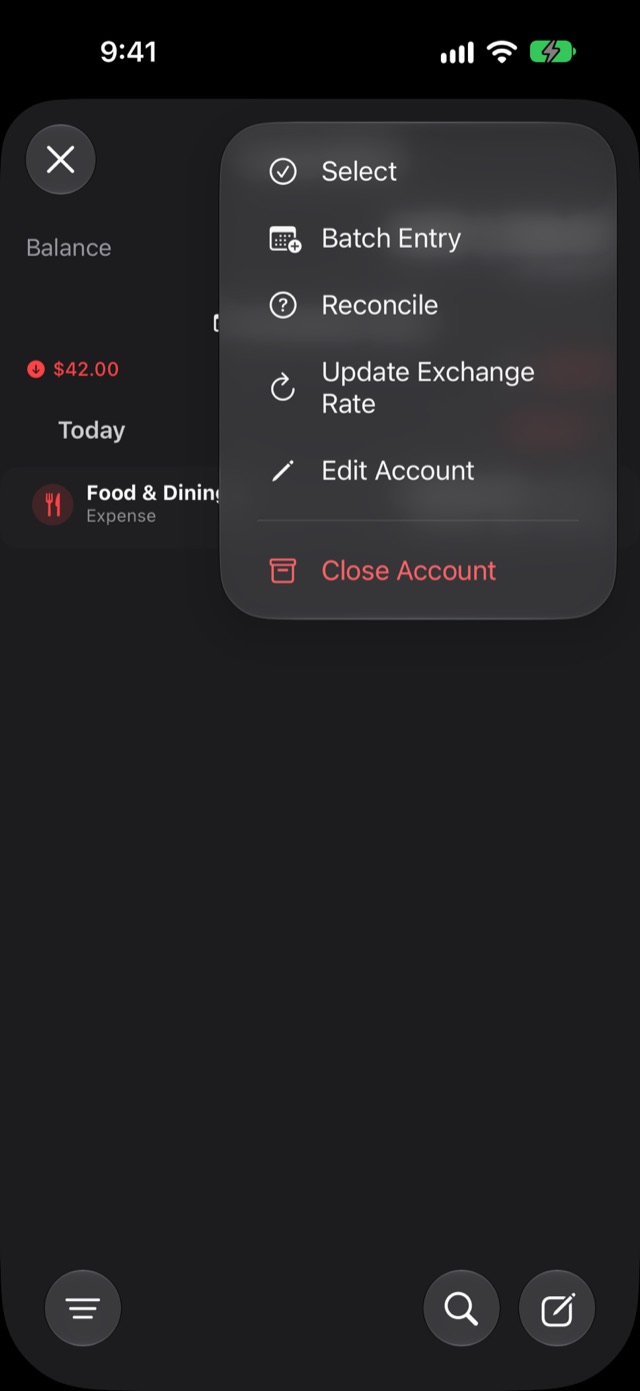
Open Update Exchange Rate
Rates move. To bring the account up to date, tap the button with three dots at the top right, then Update Exchange Rate.
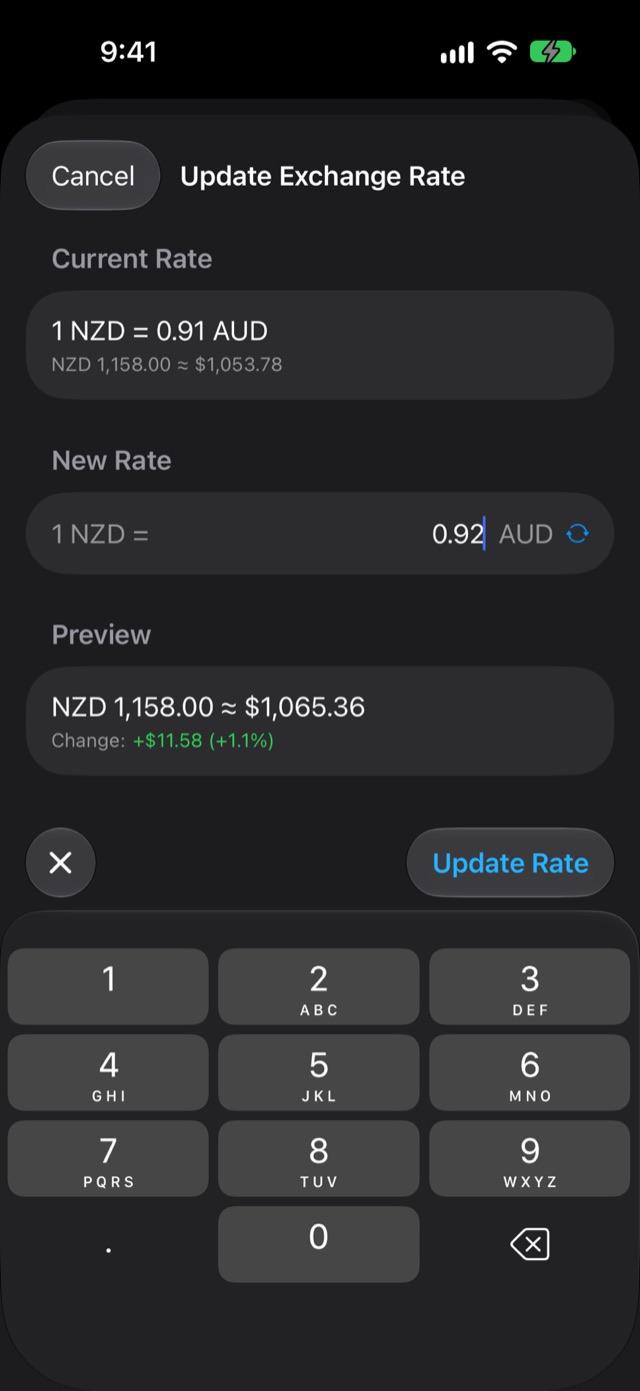
Enter the new rate
Type what one unit of the account currency is worth in your home currency. The preview shows the new value of the account and how much it changed. Tap Update Rate.
What to do next
Related tips and guides
Your home currency is set once, when you first open the app. Individual accounts can be in any currency.
Charged a conversion fee? Press and hold the transaction and choose Add FX Fee.
Moving money between currencies? Use Transfer To on the entry screen and enter the amount that arrived.